Job Instruction Sheet: EBPP Payment Center

Date/Version: 05/23/2025 - v.1

Process Owner: CCA Call Center

Review Cadence: Annually

Process/Purpose: Reset password for Support Payor (SP), and check to see if a payment was accepted.
#

Important Steps (WHAT?)

Key Points

(HOW?)

Artifacts

A logical segment of the operations that advances the work

Important actions in the steps that will: Make or break the job Make the job easier

Sketches, layouts, digital pictures , etc. that will improve understanding of the job

1  
  • Log in with your D number and password. A default password will be provided to you once you have been entered into the system. See the Artifacts link.

https://ums.orbipay

.com/umsui/#/login

?partnerKey=doec

2  
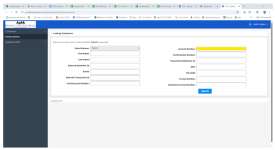
  • Enter the AZCARES case number in the Account Number field. Click onSearch to view the payment(s) that have been made.
  • Payment(s) showing a “telephone” icon at the end of the payment line means the payment was made via IVR and not through the payment portal. If no icons are displayed, it means the customer has not registered and will need to do so.
  • Under Customer Overview, you will see the phone number that’s showing for the SP.
3  
  • On the case information and payment screen, if the caller needs their password reset, click on “reset password,” and an email will be sent with further instructions.
  • Click on the tab at the top that says “Funding Sources” to view the bank name.
 
4  
  • If you need to have your password reset, please contact a Lead or Supervisor.